Monitor, draft, review, approve, publish. Before those, the planning that decides what the day looks like. After them, the record. Everything on this page is something you can ask to see in the demo.
The checks
Is it true. Is it allowed. Is it us.
Named first because they run through everything below. They flag; they never rewrite. Your editors decide.
01
Grounding — Is it true.
Every claim in the finished story is read back against the source it was written from — the text pinned to the story, not a fresh fetch of the page. Anything the source doesn’t support is flagged for review.
02
Compliance — Is it allowed.
Every passage is checked against categories your administrator defines: financial figures, forward-looking statements, claims about third parties, legal and regulatory language, and whatever else your legal team adds. The check runs from whichever categories are switched on at that moment, so the rulebook is yours. Every finding is listed by name on the edition, painted on the line it’s about, and goes away only when a person deals with it.
03
House style — Is it us.
Every story is checked against rules you wrote — the same rules whose wording went into the drafting instructions. Written once, applied on the way in, checked on the way out.
The flagged lines on the story, and the two findings that name them — one compliance flag, one claim no pinned source supports.
Every finding is painted onto the exact line it’s about. Nobody hunts through a report.
00
Plan the day
The day is laid out before it starts.
The morning meeting runs off one page. So does the answer you owe whoever asked about a story — it’s one click from the same board.
The agenda is there before the meeting is
Open the board and it’s already assembled: today’s edition slot by slot, which clearances are secured and which are still outstanding, what’s being held, and what’s coming in the week ahead. It’s built in one pass, so no two numbers on the screen can disagree, and it’s read-only on purpose: every item links straight to the screen that owns it.
Answer whoever asked, without promising it will run
One click beside any story copies a sendable update on where it stands, ending in the same caveat every time: this is status, not a commitment that the story will run. If the story is on hold, the board declines to write the sentence and tells you why.
The calendar, with the days that stop a newsletter already on it
Layers you name, recolor, and switch off independently. Your own dates beside the public ones — results day, town halls, internal deadlines — and every published edition laid over the plan as a layer that can’t be edited.
The plan and the published record on one grid.
01
Monitor
Find it, capture it, and know exactly what you hold.
What you keep goes to the source dock — the tray of clips a story is drafted from. Getting it there is the step most tools are careless about.
Clip the article already open in your browser
For an article the software can’t fetch — one behind a subscription you personally hold — click the clipper in your bookmarks bar, confirm the preview, and the full text lands in your source dock. It captures the page already open in your own authenticated session. It never signs in anywhere on your behalf.
Every source says how much of it you hold
Every source carries a plain-English badge — the whole article, part of it, cut short, or no text at all — and where the badge is an estimate rather than a record, it says so. A capture that stops mid-sentence is flagged even when it’s long enough to look complete.
A draft built on half an article looks exactly like one built on all of it.
Watch lists generated from your own coverage
What you watch for can be generated from what you’ve actually covered, rather than a keyword list someone typed once, and it skips subjects you already watch. Every generated list stays editable and removable by hand.
02
Smart Monitor
It reads the day against what you’ve already published.
A news alert tells you a word appeared somewhere. Smart Monitor tells you whether a story is actually new to you — by comparing it against your own published archive and showing you the number it used to decide. You control what it’s allowed to read, and nothing runs behind your back.
How it works
1
It asks only the publishers you approved.
You keep a list of publisher domains. The monitor requests articles from those domains and no others.
2
It throws out what isn’t an article.
Tag archives, job pages, pagination stubs, and ticker pages come back from any news index. Named rules drop them before anything is scored.
3
It compares each one to your archive.
Each article is matched against your published stories by meaning, not by shared keywords, and scored out of 100.
4
It groups the same story together.
One story carried by six outlets becomes one card, with the others folded underneath — each still openable, each still clippable.
5
You clip what you want.
A clip lands in your source dock and drags straight onto a story in the edition. A grouped story brings every outlet with it.
Match84%
What that figure is
A similarity score, not a statistic about your archive. It’s how closely one incoming article resembles the nearest real story you’ve published, compared by meaning rather than by shared words, on a scale of 0 to 100.
A high number means you’ve already published something very like it.
Template furniture — intros, sign-offs, the market block — is excluded from the score. Roughly half of a mature archive is boilerplate of that kind, and left in, it would win the top match for almost anything.
You decide which publishers it’s allowed to read
Keep a list of publisher domains. With “Only use approved sources” switched on — and it’s on when the page opens — an article from a publisher you haven’t approved is never fetched. It isn’t a display filter: the list travels inside the request, and everything that comes back is checked against it again before it reaches your feed. There’s no denylist to maintain, because anything you haven’t approved is already out.
The switch, on the toolbar. On when the page opens.
One switch widens the net, on purpose
Turn approved sources off and the same watch lists run across 44 industry topic categories instead — still scored against your archive, no longer bounded by your list. It’s how you find out what your list is missing. Then you switch back.
Hiding an outlet is separate, and reversible
Hide an outlet and its cards go, without touching the approved list and without losing the story if an outlet you still read covered it. The feed says on screen what it’s hiding and undoes it in one click.
Nothing runs behind your back
There’s no overnight job and nothing scans on a schedule. The feed pulls when you open it and when you ask it to, and the header says when it last did.
Tuning it is a page, not a ticket
Approved domains, watch lists, keywords, blocked words, and boost terms are all edited in the product by an administrator. Change one and the next scan uses it.
03
Draft
Written from your own coverage, against sources that hold still.
Drafts come in the format the story type uses, built from your closest past coverage. Add the same story from other outlets and it sets out, source by source, what each one reported that the others left out.
A transcript in; a story in your newsletter’s format out.
The check reads the same text the draft was written from
Each attached link is resolved to the fullest article text available and pinned to the story. Grounding audits the finished draft against those pinned words rather than fetching the page again. Your typed notes stay separate from article text, so guidance to the assistant is never mistaken for a sourced fact.
The two sources pinned to the lead story. Typed notes go in separately.
Re-fetch the page and the check is reading a different document.
Ask your archive, and see what it answered from
Ask a plain-language question about everything you’ve published and the answer comes back with the past stories it drew on, each one linked and insertable. Recurring furniture — intros, sign-off blocks — is filtered out, so you get coverage, not boilerplate.
Past coverage found however it was spelled
Keep an editable list of the operations, organizations, and people you cover, each with its alternate, abbreviated, and former names. Retrieval resolves against that list rather than matching words, so an entry added today takes effect on the next draft. Every save keeps the previous version.
Links that land on the exact story
Drop source material onto a story and a panel opens with the earlier pieces it matched, each with its format and the date it originally ran. Every entry carries a permanent link that lands on the exact story rather than the top of an edition, and one click drops it into your draft.
A callback with the edition it came from and one click to insert it.
The numbers are written by code, not by the model
Read time and story order are assembled the same way every time; the writing model never touches them. Read time comes from one shared definition used on every screen, counts only the sections a reader actually reads, and updates as you cut and add copy.
04
Review
Three checks, and a rulebook that is yours.
Named at the top of this page. What follows is the part that’s yours to set, and what happens to a finding once one of them raises it.
All three are named in the product itself.
House style is yours to edit
House style is a list of rules an administrator writes and edits, with every change snapshotted and reversible. Each rule does two jobs from one entry: its wording goes into the instructions the assistant drafts from, and it names the check that reads the finished copy. Written once, applied on the way in, checked on the way out. Your existing style guide goes in as written.
The compliance check looks for what you list
Financial figures, forward-looking statements, claims about third parties, legal and regulatory language — the categories are a list your administrator adds to, rewords, and switches on or off. The check is built from whichever categories are enabled at the moment it runs, not from a fixed list you can’t reach. Bring your legal team’s list; it goes in as written. Every finding is listed by name on the edition, painted on the line it’s about, and goes away only when a person deals with it.
One finding, named by category, with the line it’s about.
Fixed and agreed are two different things
Select any text and leave a note on it, in a thread the team can reply to, marked Blocker, Change, Suggestion, or For future. A note moves from Open to Done when the writer has dealt with it, and only then can a reviewer move it to Confirmed. Open straight to Confirmed is refused.
A reviewer’s blocker, shown in full and marked proposed until someone on your team confirms it.
An outside reviewer can’t hold the edition hostage
A guest’s blocker appears immediately, attributed and in full, and it doesn’t count against publish readiness until someone on your team stands behind it. An alarm that cries wolf gets ignored, so it’s shown loudly and gates nothing.
Dismiss a finding once and it stays dismissed
Any flag — style, compliance, or a claim without support — can be dismissed once, and it stays dismissed for the rest of that edition, through every re-run. Dismissals are matched on what the finding is about rather than where it sits, so rewriting the paragraph around it doesn’t bring it back.
05
Approve
Sign-off runs on your clock.
Approvals run in parallel or in order, and the chain is enforced on the server, not in the interface. Deadlines are set by the editor or counted back from send time. Each ask is a link with no login and no app behind it, and editing the story afterward flags the approval stale, with a diff.
Parallel or in order; each state in the product’s own words.
It suggests who has to clear it, from what it can actually know
Blackwing suggests who needs to clear a story from two things it can know: the rules your team has set — this word in a story means legal sees it — and who has cleared work like this before. Every suggestion says which of the two it came from, so you can disagree with it.
Your escalation policy is a setting
An administrator sets the numbers behind chasing approvals: how long before a deadline a request is due, when a reminder is due, quiet hours, your time zone and your send hour, with time zones checked when you save. Nothing is sent from the product. These are settings; your team does the chasing.
06
Publish
It leaves, and it lands on the record.
The finished edition leaves as ready-to-send HTML, or as clean copy for whatever you publish with. What was published is a frozen snapshot at a permanent address, and editing a draft afterward can’t change what went out.
The last look at what readers actually see
Before the edition leaves, a pre-flight scan looks for a placeholder left in a headline, an empty subject line, a missing read time. At the test send it’s a quiet note; at the final one it stops and asks you to confirm. It never blocks you. The failures that embarrass a newsletter are rarely process failures; they’re a stray placeholder in a piece that was fully approved.
Publish readiness means the same thing on every screen
Two things make an edition ready: every section locked, and the house-style sweep run clean. It’s computed once, and every screen reads the same answer. Everything else — compliance flags, unsupported claims, approvals outstanding, open blocking notes — is listed by name and deliberately doesn’t stop you.
Ready means locked and style-clean. Everything else is listed by name and stops nothing.
A gate that fires on every real edition is a gate people learn to route around.
Publishing closes every door it opened
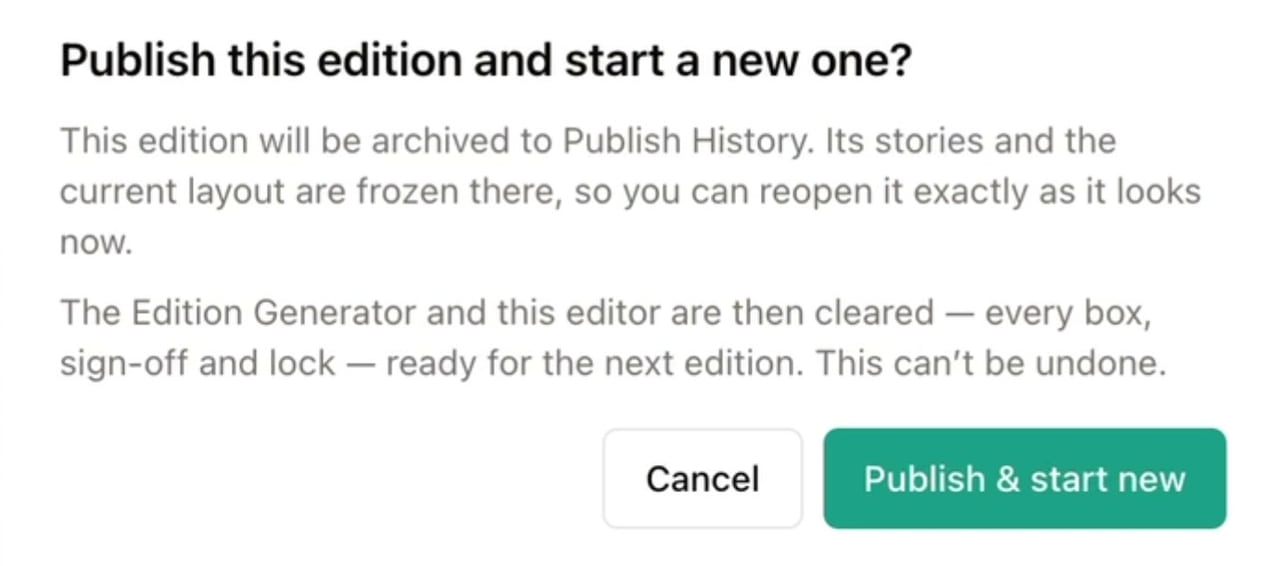
In one all-or-nothing write, outstanding invitations are revoked, unused approval links are killed, and the review conversation and version history are stamped onto the edition they belonged to. If any part of it fails, none of it happens. A link that still worked after the edition had gone out could record a clearance for text readers already have.
One permanent address, three views of the edition
One link shows the canvas as it stood when publish was pressed, one the stories as they went out, and one the audit: who published it, what was signed off and locked, and what each story was written from. Clearances read live rather than from the frozen copy, so a decision recorded after the edition went out still appears.
The freeze, in the product’s own words.
It tells you when that picture last ran
Place an image and it names the edition it last appeared in, and how long ago. The same check runs over everything attached when you open the publish dialog. Readers notice a repeated photograph faster than they notice a repeated phrase.
07
Built to be trusted
Details that only matter when they fail.
Three places where the product says no. Each one declines a save or a publish that would look fine on the day and wrong a month later.
Locked really means locked
Sign a section off, then lock it. A locked section refuses every route in — typing, paste, drag, a delete from the section below — and the refusal lives on the server, so it holds against a save from any tab rather than resting on a grayed-out button.
Two editors, one edition
Saves merge section by section, so neither of you overwrites the other. A save arriving from a tab still holding the edition you just published is refused rather than merged; otherwise the edition that shipped reappears inside the blank one behind it and goes out twice.
Exactly the edition, or nothing
What freezes is exactly the stories that were in the edition. Copy you cleared out doesn’t come back, nothing is archived twice, leftovers return to your backlog, and a publish that would be empty is refused rather than leaving a ghost edition behind.
See it on your own material.
Thirty minutes, and the whole line — monitor, draft, review, approve, publish. Not a slide about it.